BuddyBoss Activity Feed Not Updating? 9 Fixes for Missing Posts, Comments & Scheduled Activity
BuddyBoss activity feed not updating? Learn 9 practical fixes for missing posts, comments, caching problems, scheduled activity, and WordPress cron issues.
A BuddyBoss community owner publishes a new post, but it never appears in the activity feed. Another member leaves a comment, but the comment seems to disappear. A scheduled announcement is supposed to publish at a particular time, yet nothing happens.
The owner refreshes the page, clears their browser cache, and checks the community again. The result is the same.
When a BuddyBoss activity feed is not updating, the cause is not always a broken plugin. Sometimes the problem is an activity setting, privacy restriction, caching configuration, scheduled task, or conflict with another part of the WordPress installation.
It is also important to distinguish between a technically broken activity feed and a community where members simply are not posting. Both can produce an empty-looking feed, but the solutions are completely different.
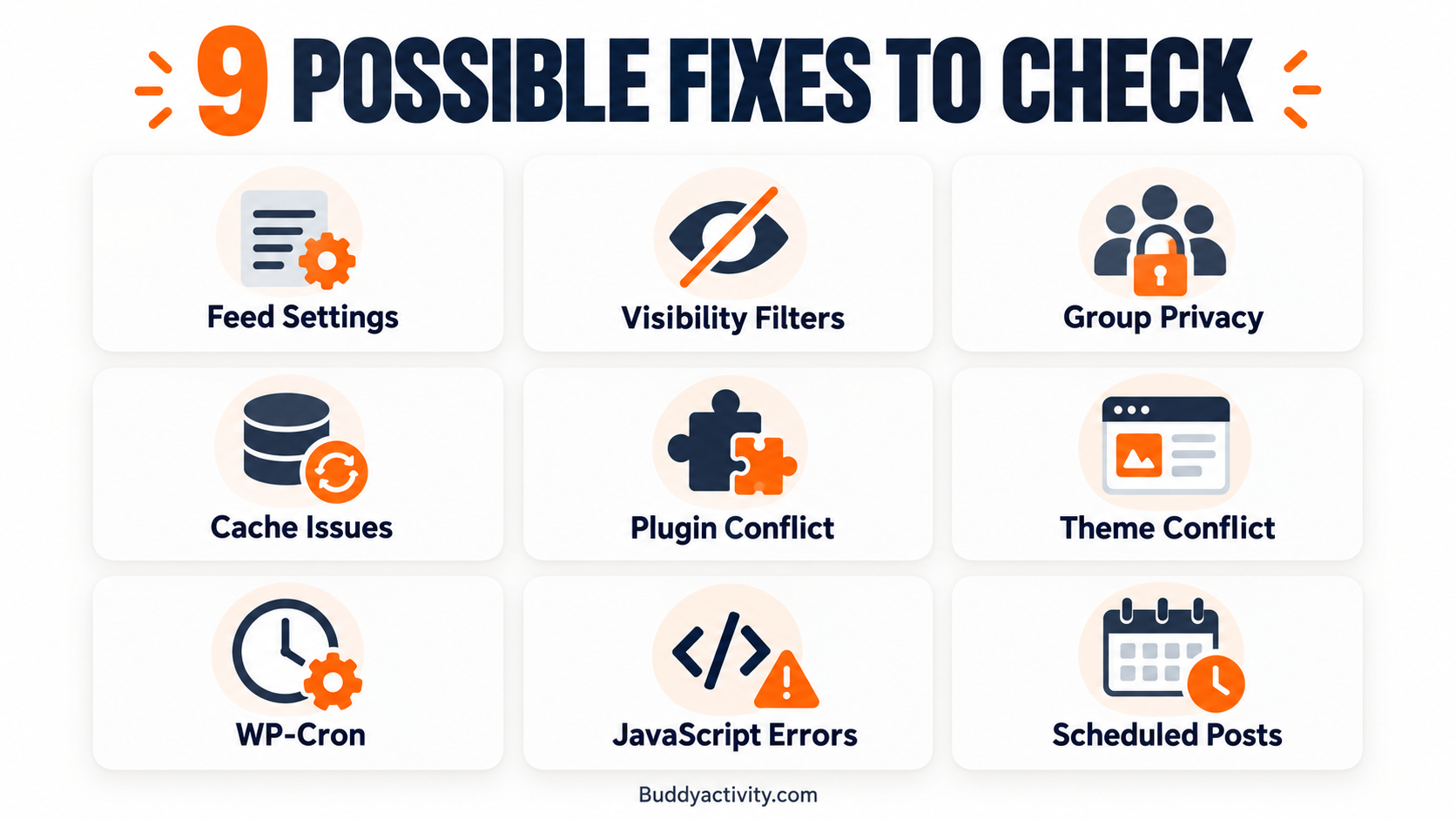
This guide walks through nine practical checks, beginning with simple settings and progressing to more advanced troubleshooting.
Before You Start — Identify What Is Actually Broken
Different symptoms point toward different causes, so the first step is identifying exactly what is not working.
Four common symptoms stand out. New posts are published but do not appear in the feed. Posts appear, but comments or replies are missing. The feed shows old content until the page is refreshed manually. Scheduled content remains pending after its intended publication time.
There is also an important difference between a post that was never successfully created and a post that exists but is hidden from the current viewer. Both look the same on the surface.
Recommend checking the same activity using an administrator account and a regular test-member account, while respecting group privacy. If an administrator can see the post but a regular member cannot, the problem is likely visibility-related rather than a technical failure.
Identifying the affected area prevents unnecessary changes to unrelated settings. For a broader look at community health indicators, the BuddyBoss and BuddyPress community audit guide covers signs that go beyond technical feed problems.
9 Fixes for a BuddyBoss Activity Feed Not Updating
Fix 1 — Check Your BuddyBoss Activity Feed Settings
The first troubleshooting step is confirming the activity component and relevant settings are enabled. In applicable BuddyBoss configurations, the Activity Feeds component and activity settings are found in the WordPress administration area.
Activity settings can control posting behavior, comments, automatic feed refresh, and other feed features. If the feed only updates after a manual browser refresh, investigate whether automatic refresh is enabled and supported in your installed configuration.
If comments are unavailable on specific posts, check applicable comment permissions and post-level settings. BuddyBoss administration menus can vary between versions, plans, and ReadyLaunch configurations, so not every installation exposes the same options.
Publish one temporary test post and check whether it appears before proceeding to more complex troubleshooting. The BuddyBoss activity settings documentation describes the available configuration options.
Fix 2 — Review Activity Feed Filters and Visibility Options
Sometimes posts are successfully published but hidden because the viewer is using a filtered activity feed. A member may be viewing activity from their connections, joined groups, followed members, or another filtered category rather than all permitted activity.
An administrator can check the currently selected feed filter, sorting options, and relevant activity settings. Where the installed BuddyBoss version supports them, review whether activity filters or relevance settings are restricting the displayed posts.
Test the feed with the broadest available view appropriate to the user's permissions. If the missing post appears under a different filter, the feed itself is working correctly.
Filtering changes what a person sees; it does not necessarily mean that the underlying post was deleted or failed to publish. Some advanced filtering controls are plan-dependent, so avoid recommending that community owners disable intentional access restrictions merely to make content visible.
Fix 3 — Check Group Privacy and Member Permissions
Private groups and activity privacy controls can make posts appear to be missing. A post published inside a private group may be visible to its members but not to visitors or users outside that group.
Similarly, an activity item with restricted visibility may not appear to every logged-in member. The BuddyBoss activity privacy documentation explains how privacy levels affect what different users can see.
Verify which group contains the missing post, whether the viewer belongs to that group, and whether the content has the intended privacy level. Administrators should compare what is visible from appropriately authorized test accounts.
Distinguish group-level permissions from ordinary feed filtering. Privacy settings should be corrected only when they are genuinely misconfigured.
Correctly configured privacy restrictions are expected behavior, not technical errors. Do not advise making private community conversations public simply to resolve a visibility complaint.
Fix 4 — Clear Caching Problems That Prevent Feed Updates
Caching can improve website performance but may also interfere with highly dynamic pages. If a cached copy of the activity feed is served to members, new posts or comments may not appear immediately.
Possible caching layers include browser caches, WordPress caching plugins, hosting-level caching, and CDN caching. BuddyBoss documentation recommends excluding relevant dynamic paths from inappropriate page caching.
Documented patterns include /activity/*, /groups/*, and /members/*, though the actual site routes and caching-system syntax must be checked for your specific installation. The BuddyBoss caching exclusions guide lists the paths that should not be cached.
Clear the appropriate cache and test the feed again. Do not disable every caching system permanently without understanding the performance consequences.
Administrators may need support from their host when server-level or CDN caching rules are involved.
Fix 5 — Investigate Conflicts With Other WordPress Plugins
WordPress websites often use multiple plugins for memberships, security, caching, forms, media, or other functionality. Occasionally, plugin conflicts can interfere with activity requests, permissions, or page behavior.
Investigate possible conflicts using a staging website or a suitable troubleshooting environment. Check whether the problem began immediately after a plugin installation or update.
The controlled testing method involves temporarily disabling suspected plugins one at a time in a safe environment and checking whether the activity feed begins working. Do not disable essential membership, payment, security, or production plugins on a live website without understanding the consequences.
Review plugin compatibility and error logs rather than assuming the newest plugin is automatically responsible. For related reading, the best BuddyBoss and BuddyPress plugins guide covers plugins that work well alongside BuddyBoss communities.
Fix 6 — Test for BuddyBoss Theme or Custom Theme Conflicts
A community's front-end appearance and behavior may be affected by its active WordPress theme, child theme, or customizations. A theme-related issue can sometimes interfere with the display of activity components or loading behaviors.
Inspect recent theme updates and custom code changes first. A developer can test the issue on staging using a compatible, supported theme configuration, while preserving a rollback option.
Custom JavaScript, template overrides, or incorrectly implemented child-theme modifications may require investigation. The goal is to determine whether the theme contributes to the problem.
Distinguish front-end rendering problems from situations where content was never saved in the database. A controlled comparison with the normal configuration helps isolate the cause.
Do not delete your theme, remove custom files, or redesign your website as a troubleshooting step.
Fix 7 — Check WordPress WP-Cron and Background Scheduling
Scheduled WordPress tasks may depend on WP-Cron or another scheduling system. WP-Cron normally relies on site traffic to trigger due tasks, which can cause delays on websites with little traffic or incorrect scheduling configurations.
A failed or delayed scheduled task can affect systems that rely on WordPress scheduling. The BuddyBoss server cron jobs documentation explains how to configure reliable background processing.
Check whether due tasks are running, whether WordPress scheduling has been intentionally disabled, and whether the hosting environment uses a real server cron job instead. Not every BuddyBoss activity feature or third-party scheduler necessarily uses the same task mechanism.
Website owners should check the actual scheduler used by the affected feature. Do not disable WP-Cron without first ensuring an appropriate alternative scheduler exists.
For server-level problems, contact the hosting provider or a qualified developer.
Fix 8 — Look for JavaScript or AJAX Errors
A feed may fail to update when browser-side JavaScript or asynchronous requests are not working correctly. Symptoms include a permanently spinning loading indicator, comments that do not appear after submission, or a feed that stops loading additional posts.
Browser developer tools can reveal errors in the Console and failed requests in the Network panel. For nontechnical readers, the simplest approach is to open the browser menu, find the developer tools option, and look for red error messages.
Record the error message, request status, and affected page before contacting a developer or technical support. The cause may involve a script conflict, blocked request, permissions issue, or server-side failure.
Conduct deeper debugging on staging and avoid displaying sensitive error messages publicly. The WordPress debugging documentation explains how to enable logging without exposing errors to visitors.
Fix 9 — Inspect Scheduled Posts and Pending Activity
An activity item remaining pending is a more specific problem than a feed that does not refresh. Check whether the scheduled publication time has passed, whether the author and group destination are valid, and whether the feature responsible for scheduling is functioning correctly.
There is an important difference between ordinary WordPress scheduled blog posts, native BuddyBoss scheduled activity posts where available, and activity published by third-party automation plugins. These mechanisms should not be treated as identical.
An administrator should inspect the relevant scheduled-post interface, queue, or logs depending on the installed feature. Check time-zone configuration when publication times appear incorrect, since a mismatched timezone can cause posts to publish hours later than expected.
If scheduled content is produced by a third-party plugin, consult that plugin's documentation and queue status rather than assuming native BuddyBoss scheduling controls apply. Test a harmless scheduled post in a controlled environment to confirm the mechanism works.
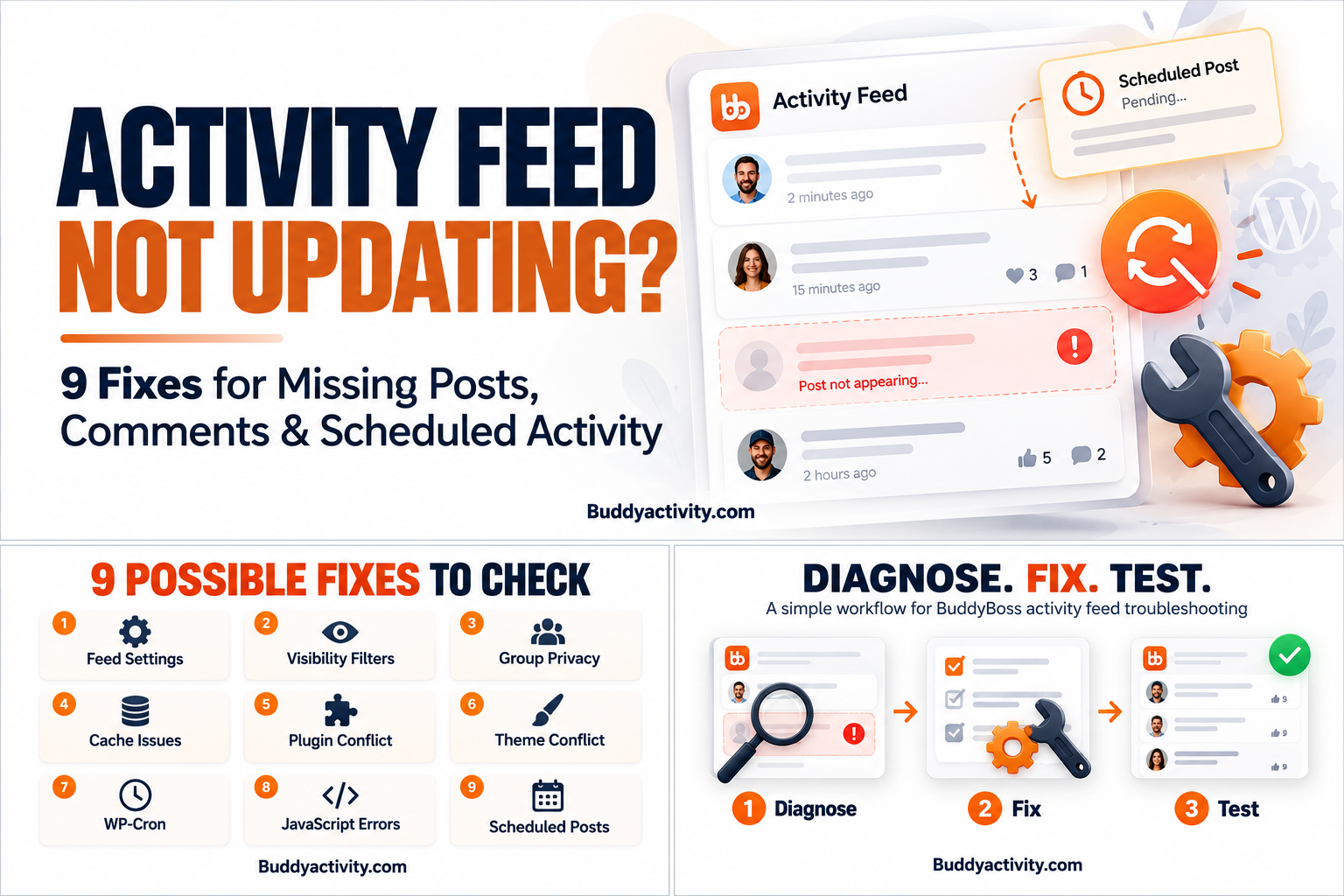
A Simple Workflow to Diagnose, Fix, and Test Your Activity Feed
Changing multiple settings simultaneously makes troubleshooting harder because administrators cannot identify which change resolved the problem. A structured approach saves time and prevents unnecessary disruption.
Step 1 — Diagnose the Problem
Reproduce the issue using a controlled test post or comment. Record exactly what happens, which users are affected, and whether the problem occurs throughout the website or only in a particular group.
Step 2 — Apply One Fix at a Time
Change only one relevant setting or configuration at a time, preferably in staging when the action could affect the live website. Record the original setting before making changes.
Step 3 — Test the Result
Publish a new test post, add a test comment, reload the activity feed, and confirm that the expected content appears to authorized viewers. Where scheduling is involved, perform a separate scheduled-publication test.
When Should You Contact Your Hosting Provider or Developer?
Some problems can be resolved through ordinary WordPress administration, while others require technical access. Examples include repeated server errors, failed asynchronous requests, corrupted configurations, recurring scheduled-task failures, or unexplained permission problems.
Before requesting help, gather the affected URL, steps to reproduce the issue, relevant error messages, installed platform versions, and the approximate time the problem began. Share sensitive logs securely and avoid publishing credentials or private member information.
Once Your Activity Feed Works, How Do You Keep Content Publishing Consistently?
Repairing a technically broken activity feed and keeping a functioning community supplied with relevant content are two different challenges. Once posts, comments, and scheduling operate correctly, community owners can evaluate whether they want to prepare and publish ongoing activity manually or with automation.
BuddyActivity automates posts, comments, and threaded replies inside BuddyBoss and BuddyPress communities using scheduled activity and configurable virtual participants. The plugin is designed for activity generation and scheduling, not as a universal repair tool for broken BuddyBoss or WordPress installations.
For a broader look at keeping a community active once the technical foundations are working, the guide on automating BuddyPress and BuddyBoss activity covers practical strategies for consistent content publishing.
Frequently Asked Questions
Why is my BuddyBoss activity feed not showing new posts?
Check whether the activity component is enabled in your BuddyBoss settings, then publish a temporary test post from an administrator account. If the post appears for administrators but not regular members, review feed filters, group privacy, and activity visibility settings before investigating caching or plugin conflicts.
Why are comments and replies missing from my BuddyBoss activity feed?
Comment visibility can be affected by post-level comment permissions, group privacy settings, or caching. Check whether comments are enabled on the specific post and whether the viewer has permission to see them. If comments work for some posts but not others, compare the settings between working and non-working posts.
Can WordPress caching stop BuddyBoss activity feeds from updating?
Yes. Page caching plugins, hosting-level caching, and CDN caching can all serve outdated feed content. BuddyBoss documentation recommends excluding activity, groups, and members paths from page caching. Clear the cache after excluding these paths and test whether new posts appear immediately.
Why are my BuddyBoss scheduled posts not publishing?
Check whether WordPress WP-Cron is running correctly or whether a server cron job is configured. Verify that the scheduled publication time has passed and that the timezone setting matches your location. If a third-party plugin handles scheduling, consult its queue status and documentation rather than assuming native BuddyBoss controls apply.
Conclusion
A BuddyBoss activity feed that stops updating does not necessarily indicate a serious failure. The problem may involve a simple visibility setting, inappropriate caching, conflicting code, or delayed background processing.
Identify the symptoms, follow the nine checks systematically, and verify each change before moving on. Technical troubleshooting should come before changing engagement strategies or installing additional automation tools.
Was this article helpful?
Get fresh community insights in your inbox
Practical guides on growing engaged BuddyPress & BuddyBoss communities. No spam.
Keep reading
Browse all articles
The BuddyBoss and BuddyPress Community Audit: 10 Signs Your Community Needs Help Right Now
Is your BuddyBoss or BuddyPress community struggling? Run this 10-point community audit to identify exactly what needs fixing and how to fix it fast.
Read article
Best BuddyBoss and BuddyPress Plugins to Boost Community Engagement in 2026
Looking for the best BuddyBoss and BuddyPress plugins in 2026? Discover the top plugins to boost engagement and grow your community fast.
Read article
How to Automate BuddyPress & BuddyBoss Activity and Keep Your Community Engaged in 2026
Your BuddyPress or BuddyBoss community launched. Members joined. Then it went quiet. Learn how to automate BuddyPress and BuddyBoss activity so your feed stays alive, members keep coming back, and engagement builds on its own.
Read article